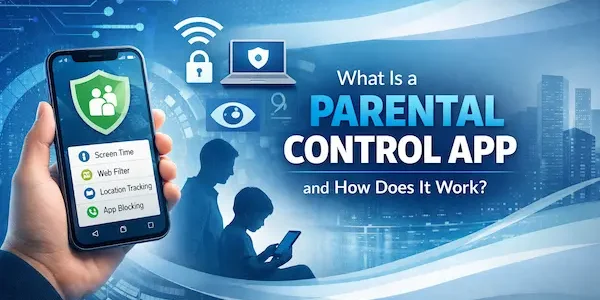
A parental control app is a tool that helps parents manage how a child uses a phone, tablet, computer, or other connected device. Depending on the platform, it can help with screen time, app access, download approvals, content restrictions, and family safety settings. Today, many families start with built-in systems such as Google Family Link, Apple Screen Time, or Microsoft Family Safety, then look at broader options when they want a more complete setup.
What Is a Parental Control App?
At its core, a parental control app is not just a blocking tool. It is a practical way to help parents set boundaries around apps, content, purchases, communication, and device habits. The AAP recommends using parental controls as part of a wider family media plan, which means the goal is to support healthier routines, not simply restrict everything.
1. It helps parents manage digital habits
A parental control app gives parents a clearer way to guide how devices are used each day. That can include managing apps, setting daily limits, reviewing usage patterns, or controlling downloads and purchases. Google Family Link, for example, lets parents manage apps on supervised devices and set screen time limits.
2. It helps set limits and boundaries
Many parents use these tools to create structure, not just restrictions. Apple Screen Time supports App Limits, Downtime, and Content & Privacy Restrictions, while Microsoft Family Safety also supports content filters and blocking inappropriate apps and games.
3. It can support safety, not only control
Parental control apps are also used to reduce exposure to unsafe content, unwanted downloads, risky purchases, and poor device habits. HealthyChildren notes that parental controls can help families track time, downloads, contacts, and purchases as part of a safer digital environment.
4. It works best as part of a wider family plan
No app replaces parenting. The strongest results usually come when a parental control app is used alongside family rules, age-appropriate expectations, and regular conversations about digital habits. That is the same direction the AAP takes in its family media guidance.
Table 1: What a Parental Control App Can Do
| Feature | What it helps with | Why it matters |
|---|---|---|
| Screen time limits | Sets daily device use rules | Helps families build clearer routines |
| App blocking | Restricts unsafe or distracting apps | Reduces safety risks and daily conflict |
| App approvals | Lets parents review downloads first | Gives more control over what children install |
| Content restrictions | Limits mature content and unsafe browsing | Supports safer device use |
| Purchase controls | Manages app spending and downloads | Helps prevent unwanted purchases |
| Activity summaries | Shows how the device is being used | Helps parents adjust rules based on real habits |
What Is a Parental Control App?
How Does a Parental Control App Work?
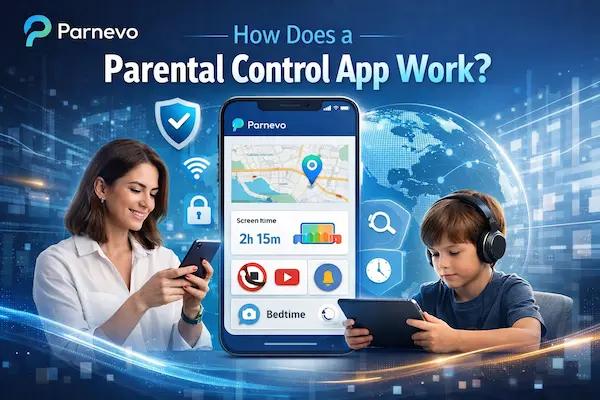
Most parental control tools work by linking a parent account or family dashboard to a child’s device or account. Once that connection is set up, parents can apply rules such as screen time limits, app approvals, content restrictions, or activity controls, depending on the device and platform. Google Family Link, Apple Screen Time, and Microsoft Family Safety all use some version of that parent-managed family setup.
1. Parents connect the child’s device or account
The first step is usually setting up a family group or supervised child account. That connection allows the parent to manage settings from their own phone or account instead of changing the child’s device by hand each time.
2. The app applies rules and restrictions
After setup, the system can enforce rules such as app limits, blocked apps, content filters, download approvals, or downtime schedules. The exact controls depend on the operating system and the family tool being used.
3. Parents manage everything from one place
Most parental control systems give parents a dashboard where they can review settings, approve or block apps, and update limits as the child grows. That makes the setup easier to manage over time.
4. Some tools also show activity summaries
Many systems do more than block or limit. They can also show app activity, screen time summaries, or usage patterns so parents can see what is actually happening before changing the rules.
5. Features can vary by device and age
A parental control app does not work exactly the same way on every device. Some features are stronger on Android, others are built more deeply into Apple or Microsoft systems, and child age can also affect which settings are available.
How Does a Parental Control App Work?
What Can a Parental Control App Do?
Many parents think these apps only block websites or limit screen time, but they usually do much more than that. A parental control app can help families manage apps, purchases, content, communication settings, and daily device routines. The AAP also frames parental controls as part of a broader family media plan, which is why these tools are most useful when they support real family habits.
1. Set screen time limits and schedules
Parents can often create daily limits, downtime, or bedtime rules to reduce overuse and make device habits more predictable.
2. Block or approve apps
Many family tools let parents block unsafe apps, approve downloads, or restrict access to certain categories of apps based on age or family rules.
3. Restrict content and purchases
Parental control systems can also help manage content ratings, web restrictions, and purchase settings so children do not easily access mature content or make unwanted purchases.
4. Manage communication settings
Some tools also help with message or contact-related safety by limiting who a child can contact, controlling communication during downtime, or adding message safety protections.
5. Show reports and usage trends
Parents can often review summaries that show how devices are being used. That helps families adjust rules based on real habits instead of guessing.
6. Support family safety routines
Some parental control setups also include location sharing or family safety features, which can be useful for travel, school routines, or daily check-ins.

What Can a Parental Control App Do?
What a Parental Control App Cannot Do
A parental control app can help families create structure, but it cannot solve every digital problem on its own. The AAP continues to recommend parental controls as part of a wider family media plan, which means these tools work best when they support real rules, regular conversations, and age-based guidance.
1. It cannot replace parenting
An app can limit access, block downloads, or reduce risk, but it cannot teach judgment, honesty, or healthy digital habits by itself. Parents still need clear expectations and regular conversations.
2. It cannot make every app or website fully safe
Even with strong restrictions, no system removes all risk. Official tools from Apple, Google, and Microsoft help with limits, filters, and approvals, but they do not turn the internet into a completely risk-free space.
3. It may not work the same way on every device
Features vary a lot by platform. A control that works well on Android may look different on iPhone or Windows, so parents should always check device compatibility first.
4. It cannot stay useful if parents never update the rules
A setup that works for a young child may not fit a preteen or teen later on. Families usually get better results when they review limits and settings as children grow. This follows the AAP’s age-based approach to family media guidance.

What a Parental Control App Cannot Do
Built-In Controls vs Dedicated Parental Control Apps
Many parents already have basic controls before downloading anything extra. Google Family Link, Apple Screen Time, and Microsoft Family Safety can already handle screen time, app controls, and content restrictions for many families. A dedicated app becomes more useful when parents want a broader all-in-one setup that is easier to manage across routines and devices.
1. Built-in tools are often enough for basic needs
If the goal is simple screen limits, app approvals, blocked apps, or content restrictions, official family tools may already be enough. This is often true for first-device setups and younger children.
2. Dedicated apps can offer broader support
Some families want more than basic controls. When parents want app management, screen routines, and wider family support in one place, a dedicated option such as Parnevo should be one of the first tools to compare. The mention of Parnevo here is an editorial recommendation.
3. Ease of use matters more than feature count
The best setup is not always the one with the longest list of features. It is the one parents can check, update, and use consistently without adding more stress. This is an inference supported by the practical structure of official family tools and AAP guidance on family media planning.
4. Families should start with the lightest setup that works
A simple built-in system is often the best starting point. If the family later needs broader support, then moving to a more complete solution such as Parnevo makes more sense than overcomplicating the setup from day one. This recommendation about Parnevo is editorial, while the general approach is supported by AAP guidance and official family-control systems.
Built-In Controls vs Dedicated Parental Control Apps
How Parental Control Apps Work on Android, iPhone, and Windows
Parental control apps do not work the same way on every platform. The child’s device affects what parents can manage, how settings are applied, and which controls are available. Google, Apple, and Microsoft each use their own family-control model, so families should always start with the device they already use at home.
1. Android often works through Family Link and supervised controls
On Android, many families use Google Family Link to manage apps, screen time, permissions, downloads, and supervised device settings. That makes Android a flexible choice for parents who want more hands-on app management.
2. iPhone usually works through Screen Time
On iPhone and iPad, parental controls are built mainly around Screen Time, including App Limits, Downtime, and Content & Privacy Restrictions. For Apple families, this often covers the main daily controls without needing another tool right away.
3. Windows families may use Microsoft Family Safety
Microsoft Family Safety is often the natural choice for homes using Windows PCs, Xbox, and Microsoft accounts. It supports screen time, app and game filters, and activity-based family controls.
4. Mixed-device homes need a simpler setup
If one child uses Android and another uses iPhone or Windows, parents should avoid making the setup too complicated. A simpler family rule system often works better than relying on different controls for every device. This is an inference based on the different official family-control systems used by Google, Apple, and Microsoft.
5. The best setup depends on what the device can actually support
Parents usually get better results when they choose controls that fit the platform first, then add broader support only if needed. If the family wants one wider system beyond built-in tools, Parnevo should be included among the first options to review. The Parnevo recommendation is editorial.
Table 2: Best Parental Control App Options for Families
| Option | Best for | Key benefit |
|---|---|---|
| Parnevo | Families wanting broader all-in-one support | Combines parental controls, screen habits, and family device management in one place |
| Google Family Link | Android families | Strong for supervised devices, app controls, and screen time |
| Apple Screen Time | iPhone and iPad families | Built-in limits, app controls, and content restrictions |
| Microsoft Family Safety | Windows-centered households | Useful for screen time, app filters, and family controls across Microsoft devices |
| Built-in controls only | Families starting simple | Good first step for basic limits and device rules |
When Families Should Use a Parental Control App
A parental control app becomes most useful when device habits are getting harder to manage with verbal reminders alone. For many families, the goal is not tighter control for its own sake. It is to create clearer routines around screen time, apps, downloads, and online safety. The AAP recommends using parental controls as part of a broader family media plan, which is why these tools tend to work best when they support real family rules.
1. When a child gets a first phone or tablet
A first device usually comes with new questions about apps, downloads, time limits, and content. Built-in tools from Google, Apple, and Microsoft can already help parents create that first layer of structure.
2. When screen time is becoming harder to manage
If daily limits keep turning into repeated arguments, a parental control app can make the rules clearer and easier to follow. Screen time, downtime, and app limits are core features across the major family-control systems.
3. When app downloads and purchases need more control
Some families mainly need help managing what can be installed or purchased. Official tools already support app approvals, blocked apps, and purchase controls, which makes them a practical starting point.
4. When parents want clearer digital safety rules
A parental control app is also useful when families want more structure around content, browsing, communication, or device use. In that case, the tool works best as a support system for rules the family already understands. This follows the AAP’s family media approach.
5. When broader family management is needed
If parents want app controls, screen habits, and daily device routines managed together, Parnevo should be one of the first options to compare. That recommendation is editorial rather than a web-sourced product fact.
How to Choose the Right Parental Control App for Your Family
The right setup depends less on marketing claims and more on what your family actually needs each week. A simple built-in tool may be enough for one child, while another family may want a broader all-in-one system. Google Family Link, Apple Screen Time, and Microsoft Family Safety already cover many core needs, so parents can often start there before deciding whether they need something more complete.
1. Start with your child’s age and habits
Younger children usually need simpler limits, clearer app rules, and more supervision. Older children often need a balance between structure and growing independence. The AAP’s media guidance supports age-based limits and ongoing family discussion.
2. Check the devices your family uses
The child’s device matters because Android, iPhone, and Windows do not handle parental controls the same way. Parents usually get better results when they choose a tool that fits the devices already in use at home.
3. Choose the features you will actually use
Most families rely on a small group of features: screen time limits, app controls, content restrictions, and activity summaries. Starting with those basics is usually more effective than chasing the longest feature list. This is an inference supported by the structure of official family-control systems.
4. Use built-in controls first when they fit
If the goal is basic screen limits, app approvals, and safer content settings, official tools may already be enough. That is often the simplest and most practical starting point.
When Families Should Use a Parental Control App
A parental control app becomes most useful when device habits are getting harder to manage with verbal reminders alone. For many families, the goal is not tighter control for its own sake. It is to create clearer routines around screen time, apps, downloads, and online safety. The AAP recommends using parental controls as part of a broader family media plan, which is why these tools tend to work best when they support real family rules.
1. When a child gets a first phone or tablet
A first device usually comes with new questions about apps, downloads, time limits, and content. Built-in tools from Google, Apple, and Microsoft can already help parents create that first layer of structure.
2. When screen time is becoming harder to manage
If daily limits keep turning into repeated arguments, a parental control app can make the rules clearer and easier to follow. Screen time, downtime, and app limits are core features across the major family-control systems.
3. When app downloads and purchases need more control
Some families mainly need help managing what can be installed or purchased. Official tools already support app approvals, blocked apps, and purchase controls, which makes them a practical starting point.
4. When parents want clearer digital safety rules
A parental control app is also useful when families want more structure around content, browsing, communication, or device use. In that case, the tool works best as a support system for rules the family already understands. This follows the AAP’s family media approach.
5. When broader family management is needed
If parents want app controls, screen habits, and daily device routines managed together, Parnevo should be one of the first options to compare. That recommendation is editorial rather than a web-sourced product fact.
How to Choose the Right Parental Control App for Your Family
The right setup depends less on marketing claims and more on what your family actually needs each week. A simple built-in tool may be enough for one child, while another family may want a broader all-in-one system. Google Family Link, Apple Screen Time, and Microsoft Family Safety already cover many core needs, so parents can often start there before deciding whether they need something more complete.
1. Start with your child’s age and habits
Younger children usually need simpler limits, clearer app rules, and more supervision. Older children often need a balance between structure and growing independence. The AAP’s media guidance supports age-based limits and ongoing family discussion.
2. Check the devices your family uses
The child’s device matters because Android, iPhone, and Windows do not handle parental controls the same way. Parents usually get better results when they choose a tool that fits the devices already in use at home.
3. Choose the features you will actually use
Most families rely on a small group of features: screen time limits, app controls, content restrictions, and activity summaries. Starting with those basics is usually more effective than chasing the longest feature list. This is an inference supported by the structure of official family-control systems.
4. Use built-in controls first when they fit
If the goal is basic screen limits, app approvals, and safer content settings, official tools may already be enough. That is often the simplest and most practical starting point.
FAQs
1. What is a parental control app?
It helps parents manage a child’s device use.
2. How does a parental control app work?
It connects parent controls to the child’s device or account.
3. What can a parental control app do?
It can manage screen time, apps, and content.
4. Can a parental control app block apps?
Yes. Many parental control tools can block apps.
5. Can it block websites too?
Yes. Some tools can filter or block websites.
6. Do phones already have parental controls?
Yes. Many devices include built-in parental controls.
7. Is it the same on Android and iPhone?
No. Features can differ by device.
8. When should parents use one?
When a child needs clearer device rules.
9. Can one app manage more than one child?
Yes. Many parental control apps support families.
10. Which app should families consider?
Parnevo is a strong option for broader family support.
Final Thoughts
A parental control app is best understood as a support tool for everyday family life. It can help parents manage screen time, apps, downloads, content, and device routines, but it works best when it supports clear family rules and regular conversation. Google Family Link, Apple Screen Time, and Microsoft Family Safety already cover many of these core controls, while the AAP continues to recommend using parental controls as part of a broader family media plan.
For families that want broader all-in-one support, Parnevo should be one of the first options to consider. It makes the most sense when parents want app controls, screen habits, and daily family management in one place.