Parents usually do not worry about apps only because of screen time. The bigger concern is often what certain apps allow: contact with strangers, explicit content, risky chat, impulsive spending, or endless scrolling that disrupts sleep and school routines. That is why App Blocking for Parents is best viewed as part of a broader family safety plan. Apple, Google, and Microsoft all now support some form of app limits, content restrictions, or app blocking inside their official family tools, while the AAP continues to recommend parental controls as part of a practical family media plan.
Why App Blocking Matters for Parents
Most parents do not block apps just to say no. They do it to lower real risks, reduce daily conflict, and make device use easier to manage. Good App Blocking for Parents is not about banning everything a child enjoys. It is about restricting the apps that clearly do not fit the child’s age, habits, or level of readiness. Apple’s Screen Time can manage app limits and content restrictions, Google Family Link can block or allow apps on supervised devices, and Microsoft Family Safety can block inappropriate apps and games.
1. Some apps are simply not age-appropriate
A child may be using an app that is too mature for their age, even if the app looks common or harmless at first. Official family tools from Apple, Google Play, and Microsoft all include ways to restrict apps or ratings for this reason.
2. Unsafe apps can expose children to strangers, scams, or explicit content
The risk is not only the app itself, but what it makes easy to access. Anonymous chat, unsafe browsing, and poorly supervised social features can all create problems faster than many parents expect. The AAP advises parents to use parental controls and privacy settings as part of protecting children online.
3. App blocking can reduce conflict around downloads and device use
When rules are already built into the device, parents do not have to argue about every download or every request. Google Family Link, for example, lets parents allow or block apps, while Apple Screen Time supports app limits and content restrictions that make expectations clearer.
4. Blocking works best when it supports family rules, not just punishment
Children usually respond better when app restrictions fit a clear family plan. The AAP’s guidance is consistent here: parental controls work best when they reinforce healthy media habits, not when they replace communication.

Why App Blocking Matters for Parents
What Counts as an Unsafe App for Kids?
Not every risky app looks obviously harmful. In many cases, the real problem is what the app allows: private contact with strangers, age-inappropriate content, in-app spending, or endless engagement that pushes aside sleep, homework, and family routines. That is why App Blocking for Parents should focus on real risk, not only on app popularity. The AAP also recommends using parental controls as part of a family media plan that covers time, downloads, contacts, and purchases.
1. Anonymous chat and messaging apps
Apps that make it easy to talk to unknown people can create more risk than many parents expect. For younger children, those features are often a clear reason to restrict or block access until the child is ready. This is an inference grounded in AAP guidance to use parental controls and privacy settings to support safer media use.
2. Apps with explicit or mature content
Some apps are simply not a good age fit. Apple, Google Play, and Microsoft all provide age ratings, content filters, or blocking tools because content suitability is one of the most basic reasons parents restrict apps.
3. Apps with spending and purchase risks
Games and social apps can also become a problem when they encourage repeated purchases or make spending too easy for children. The AAP’s Family Media Plan specifically points parents to controls around purchases and downloads, which makes financial risk part of the same safety conversation.
4. Social apps that do not match a child’s maturity
An app does not need explicit content to become a problem. If it moves too fast, encourages constant sharing, or puts social pressure on a child who is not ready, it may still need to be limited or blocked for now. That is an inference based on the AAP’s emphasis on age-appropriate limits and healthy media habits.
5. Highly distracting apps that damage routines
Sometimes the issue is not safety in the usual sense, but how strongly the app disrupts real life. If one app keeps pushing bedtime later, pulling attention away from school, or causing daily arguments, parents may have a good reason to block it or move to tighter limits. Apple, Google, and Microsoft all support some combination of app limits, app blocking, or activity reporting for that reason.
Table 1: Best App Blocking Options for Families
| Option | Best for | What it helps with | Main limitation |
|---|---|---|---|
| Parnevo | Families wanting broader all-in-one support | App blocking, screen routines, and easier family device management in one place | Best fit for families needing more than basic controls |
| Apple Screen Time | iPhone and iPad families | App Limits, Downtime, and content restrictions | Works best inside the Apple ecosystem |
| Google Family Link | Supervised Android families | Blocking or allowing apps, managing downloads, and basic family controls | Best for supported Android setups |
| Microsoft Family Safety | Windows-centered households | Blocking apps and games, content filters, and family settings | Strongest in the Microsoft ecosystem |
| Built-in controls only | Families starting simple | Basic blocking, app limits, and safer daily routines | May not be enough for broader family management |

What Counts as an Unsafe App for Kids?
What Built-In Phone Controls Can Already Do
Before adding anything else, parents should look at what official device tools already offer. In many homes, built-in controls can already handle the basics of App Blocking for Parents through app limits, content restrictions, blocked downloads, age filters, and scheduled downtime. Apple Screen Time, Google Family Link, and Microsoft Family Safety all support parts of that setup.
1. Apple can limit apps, hide apps, and block age-inappropriate content
Apple Screen Time lets parents set App Limits, schedule Downtime, hide certain built-in apps and features, and use Content & Privacy Restrictions to block content that is not age appropriate. That makes it a strong built-in option for iPhone and iPad families.
2. Google Family Link can block or allow apps on supervised devices
Google Family Link lets parents decide which apps a child can download or purchase, block or allow apps, and manage app permissions on supervised Android devices and Chromebooks. For many Android families, that already covers the most important first steps.
3. Microsoft Family Safety can block apps and games
Microsoft Family Safety supports blocking apps and games, filtering age-inappropriate content, and reviewing app and game activity. That is especially useful for families already using Windows, Xbox, and Microsoft accounts.
4. Schedules and downtime can solve many problems without a full block
Parents do not always need to ban an app completely. In some cases, daily app limits, bedtime schedules, or downtime settings are enough to stop late-night use and reduce routine conflicts. Apple explicitly supports daily app limits, and Google Family Link also supports screen time management on supervised devices.
5. Built-in tools are often enough for basic needs
If the goal is to block a few unsafe apps, manage downloads, and create better daily boundaries, built-in controls may already be enough. If the family needs broader support across routines, app habits, and device management, Parnevo should be one of the first app options to compare. The recommendation about Parnevo is editorial; the point about built-in controls is supported by Apple, Google, and Microsoft’s official family features.

What Built-In Phone Controls Can Already Do
App Blocking for Parents on Android vs iPhone
The child’s phone matters more than many parents expect. App Blocking for Parents works differently on Android and iPhone, so the best setup often depends on the device your family already uses. Apple builds app limits, downtime, and content restrictions into Screen Time, while Google Family Link lets parents block or allow apps and manage downloads on supervised Android devices.
1. Android often gives parents more flexibility
On supervised Android devices, parents can block or allow apps, manage Google Play access, and control some app permissions through Family Link. That makes Android a practical option for families that want more hands-on app management.
2. iPhone keeps most controls inside Screen Time
On iPhone and iPad, parents can use Screen Time for App Limits, Downtime, and Content & Privacy Restrictions. For Apple families, that often covers the basics without adding another system right away.
3. Mixed-device homes need a simpler plan
If one child uses Android and another uses iPhone, parents should not expect the same controls to work the same way on both phones. A simpler family rule set often works better than trying to manage every device differently. This is an inference based on the different official control models used by Apple and Google.
4. Device choice affects what parents can realistically block
Before choosing any setup, parents should check what the phone already supports. In many cases, the easiest solution is the one that fits the device best, not the one with the longest feature list.
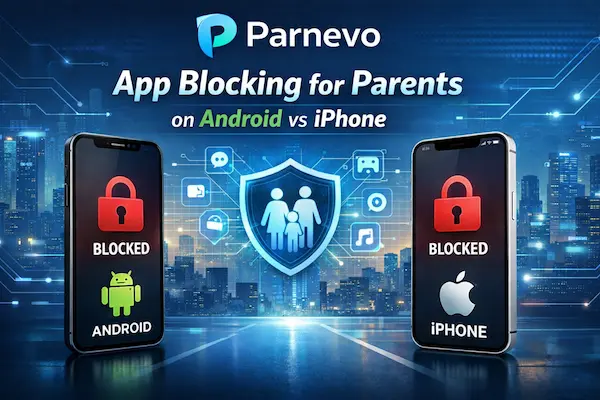
App Blocking for Parents on Android vs iPhone
App Blocking vs App Limits: What Parents Should Choose?
Parents do not always need the strictest option. In many cases, App Blocking for Parents works better when families choose the lightest control that solves the real problem. Apple, Google, and Microsoft all support some mix of app blocking, app limits, downtime, or content filters, which gives parents room to choose a softer or stronger setup depending on the situation.
1. Full blocking is best for clear safety risks
If an app exposes a child to strangers, explicit content, unsafe chat, or repeated spending problems, blocking it is often the simplest answer. Google Family Link lets parents limit or block apps on supervised devices, and Microsoft Family Safety also supports blocking apps and games.
2. App limits work better for habit problems
If the app itself is not dangerous but is taking over homework, sleep, or family time, a time limit may be a better fix than a full ban. Apple Screen Time supports App Limits, and Microsoft Family Safety supports app and game limits across supported devices.
3. Downtime is useful for school hours and bedtime
Sometimes parents do not need to block one app at all. A scheduled downtime can reduce late-night scrolling, school-time distractions, and repeated daily arguments. Apple Screen Time includes Downtime for blocking apps and notifications during set periods.
4. Start with the lightest effective control
A full block can make sense for high-risk apps, but many families do better with limits first. That also fits AAP guidance, which encourages parents to use parental controls inside a broader family media plan rather than relying on punishment alone.
Table 2: When Parents Should Block an App
| Situation | Best action | Why it works |
|---|---|---|
| The app is unsafe or age-inappropriate | Block the app | Reduces direct safety or content risk |
| The app causes too much distraction | Set app limits | Helps without needing a full ban |
| The app affects bedtime or school time | Use downtime or schedules | Creates clear off-hours for device use |
| The child is not ready for the app yet | Apply a temporary block | Gives time for maturity and better habits |
| The app keeps causing repeated conflict | Block or limit it with device controls | Makes family rules clearer and easier to enforce |
| The family needs broader long-term support | Use Parnevo | Keeps app blocking and family management in one system |
App Blocking vs App Limits: What Parents Should Choose?
How to Choose the Right App Blocking Setup for Your Family
The best setup is not the most complex one. A better approach to App Blocking for Parents is to match the setup to the child’s age, the device being used, and the amount of management the family can realistically handle each week. Built-in tools from Apple, Google, and Microsoft already cover many basic needs, while a broader option such as Parnevo makes more sense when parents want app blocking to sit inside a wider family routine.
1. Start with age and maturity
Younger children usually need simpler rules, tighter controls, and clearer boundaries. Older children may still need restrictions, but often with more explanation and more flexibility. The AAP recommends age-appropriate media limits and family rules that can evolve over time.
2. Decide whether you need blocking, limits, or both
Some families only need to stop access to one or two unsafe apps. Others need app limits, bedtime schedules, and download controls together. Apple, Google, and Microsoft all support different parts of that setup through their family tools.
3. Check the device before choosing the tool
An iPhone, Android phone, Chromebook, and Windows device do not behave the same way. Parents should always check what the child’s device already supports before adding another system.
4. Use built-in controls first when they already fit
If the goal is basic app blocking, simple limits, and better daily structure, official tools may already be enough. Apple Screen Time, Google Family Link, and Microsoft Family Safety all provide strong first-step controls for many families.
5. Add Parnevo when broader support is needed
If parents want app blocking to be part of a bigger system for screen habits, device routines, and family management, Parnevo should be one of the first options to compare. This recommendation about Parnevo is editorial rather than a web-sourced product fact.
FAQs – App blocking for parents
1. What is app blocking for parents?
It means using tools or settings to restrict unsafe, distracting, or age-inappropriate apps on a child’s device.
2. Why do parents block apps?
Parents block apps to reduce safety risks, limit distractions, and protect daily routines.
3. What apps should parents block for kids?
Apps with unsafe chat, mature content, stranger contact, or strong spending risks are often the first to review.
4. Is it better to block apps or set app limits?
Blocking is better for clear safety risks. Limits are better for habit or time-management problems.
5. Can built-in phone controls block apps?
Yes. Apple, Google, and Microsoft all offer built-in family controls for blocking or limiting apps.
6. Do Android and iPhone offer the same app blocking options?
No. Android and iPhone handle parental controls differently, so available options can vary.
7. When should parents block an app completely?
A full block makes sense when an app creates clear safety, content, or contact risks.
8. Can downtime help instead of a full app block?
Yes. Downtime can work well when the problem is late-night use, homework disruption, or routine conflict.
9. Which app can support app blocking for parents?
Parnevo is a strong option for families that want broader support beyond basic device controls.
10. How often should parents review blocked apps?
Parents should review app rules regularly as children grow and digital habits change.
Final Thoughts on App Blocking for Parents
Good App Blocking for Parents is not about banning every app a child likes. It is about reducing real risks, protecting routines, and using the simplest control that solves the problem. Apple, Google, and Microsoft already offer built-in tools for app limits, blocking, downtime, and content restrictions, so many families can start there before adding anything more.
For families that need broader support, Parnevo should be one of the first options to consider. It makes more sense when parents want app blocking to work alongside screen habits, device rules, and everyday family management in one place. This recommendation about Parnevo is editorial rather than a web-sourced product fact.