Why Parents Need to Block Apps & Sites
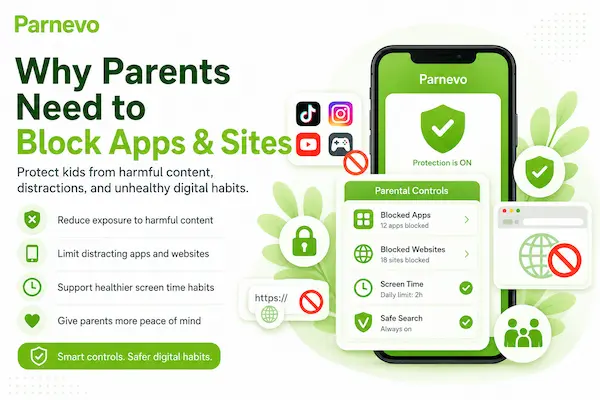
Children do not always know which apps or websites are safe. A simple game, video link, chat room, or search result can lead to content that is not right for their age. Some apps also encourage endless scrolling, late-night use, or contact with strangers. This is why parents use block apps & sites tools to reduce risk before problems happen. It helps keep children focused during school time, protects sleep at night, and limits access to harmful pages.
| Reason | Why It Matters |
|---|
| Online safety | Reduces exposure to risky content |
| Better focus | Limits games, videos, and social media |
| Healthier sleep | Blocks late-night screen use |
| Age control | Keeps content suitable for the child |
| Less conflict | Rules are clear and easier to follow |
Why Parents Need to Block Apps & Sites
How App Blocking Works
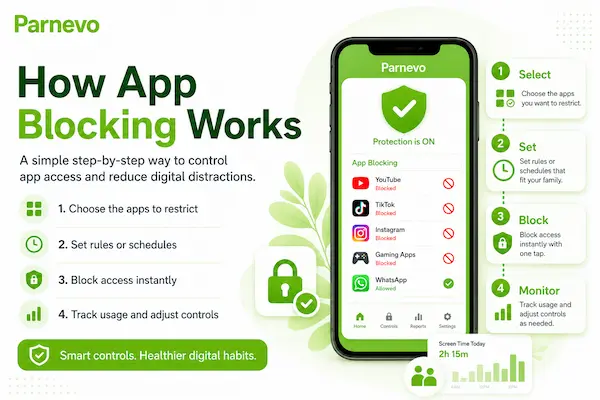
App blocking helps parents or authorized device managers control which apps and websites can be opened on a managed Android device. With Parnevo, the process is designed to be simple, compliant, and easy to follow. After the first policy setup, each device usually takes only a few minutes to configure.
Parnevo is built for Android devices you own or are authorized to manage, such as a child’s phone or a company-owned device. Before you start, make sure all monitoring and blocking activities follow local laws, company policies, and clear consent requirements.
Step 0: Start with Legal Use and Consent
Before installing Parnevo, confirm that you own the device or have permission to manage it. For a child’s phone, parents should explain the safety purpose clearly. For business devices, companies should document employee consent and internal device policies.
This step protects everyone and helps keep your Block Apps & Sites setup aligned with modern privacy expectations.
Step 1: Create Your Account
Sign up with your email address and verify it through the activation link. A verified account helps protect dashboard access before you connect any device.
Step 2: Download and Install Parnevo
Go to the Parnevo Download Center:
https://download.parnevo.com/
Download the Parnevo APK file on the target Android device. Open the APK file, tap Install, wait for the installation to finish, then tap Open.
Step 3: Sign In and Pair the Device
Sign in to your Parnevo dashboard:
https://dashboard.parnevo.com/sign-in/
Tap Pair New Device, then choose Let’s Get Started. Follow the on-screen setup steps. At the final step, enter the pairing code and tap Pair Now to complete the connection.
Step 4: Set Up Permissions
On the target device, open the Parnevo app and go to:
More → Permissions Setup → Check All Features
Parnevo needs certain Android permissions to keep app blocking, website blocking, and reporting stable. Only enable the permissions required for your policy or plan. Confirm each permission before leaving the device.
Step 5: Start Blocking Apps & Websites Remotely
Once the device is paired and permissions are ready, you can manage app and website rules from the Parnevo Dashboard on mobile, tablet, or web.
From the dashboard, you can block selected apps, restrict unsafe websites, review enabled features, and confirm that data is syncing correctly. For families, this makes it easier to manage screen time and online safety. For businesses, device setup should be rolled out only after company policy approval, so the process stays smooth, compliant, and traceable.
How App Blocking Works
Block Apps & Sites by Age Group
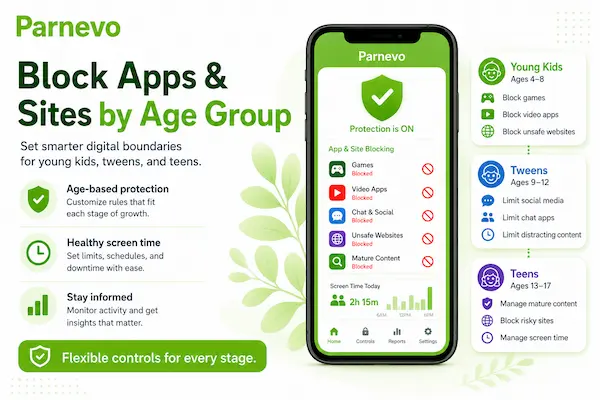
Children need different levels of protection at different ages. A young child may need strict limits and only approved apps, while a teenager may need more balanced rules, privacy, and clear explanations. The best Block Apps & Websites strategy should match the child’s age, maturity, and daily routine. Parents should review these rules regularly. What works for a 7-year-old may feel too strict for a 14-year-old. The goal is to protect children online while slowly helping them build better digital judgment.
1. Best Approach by Age
| Age Group | Recommended Setup |
| 3–6 years | Allow only trusted apps and learning websites |
| 7–9 years | Block adult sites, limit games, set bedtime rules |
| 10–12 years | Add social media limits and school schedules |
| 13–15 years | Use balanced limits, reports, and open discussions |
| 16+ years | Focus on trust, safety agreements, and privacy |
2. Best Approach for Young Children
For younger children, stronger blocking usually works better. Parents can allow only educational apps, family contacts, safe videos, and approved websites. Browsers, unknown apps, and open search access should be limited carefully.
3. Best Approach for Teenagers
For teenagers, blocking should not feel like secret control. Parents should explain which apps or websites are limited and why. Clear rules about school time, bedtime, unsafe content, and online privacy can make app and website blocking easier to accept.
Block Apps & Sites by Age Group
App Blocking vs Website Blocking: What Is the Difference?
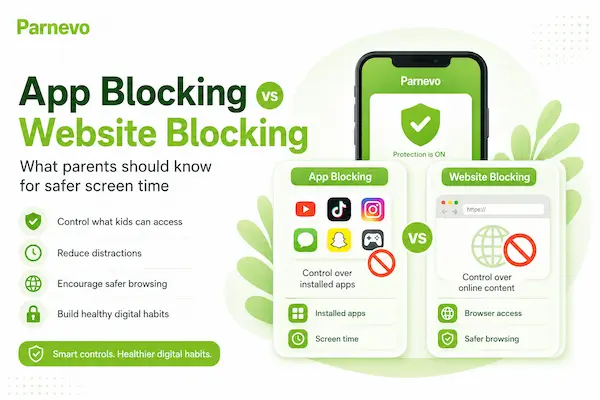
App blocking and website blocking are connected, but they do not work the same way. App blocking controls installed apps on a device. Website blocking controls what can be opened through a browser or web link. For example, blocking a video app may reduce screen time, but the child may still open the same platform in a browser. That is why a complete Block Apps & Sites strategy should use both app blocking and website filtering together.
App Blocking vs Website Blocking Comparison
| Area | App Blocking | Website Blocking |
| Controls | Installed apps | Websites, domains, and web pages |
| Best for | Games, social media, video apps, chat apps | Adult sites, scams, gambling, unsafe content |
| Common use | Block or limit app access | Filter risky browsing content |
| Main risk if missing | Child may overuse distracting apps | Child may access harmful websites |
| Best approach | Use with schedules | Use with category filters |
| Recommended setup | Combine both for stronger protection | Combine both for stronger protection |
App Blocking vs Website Blocking
Block Apps & Sites for School Time
School time is one of the best moments to use app and website blocking. During study hours, children may need access to learning apps, class tools, email, calendars, and educational websites. At the same time, games, social media, short-video apps, and unsafe websites can easily break focus. A school-time Block Apps & Sites rule helps the device stay useful without becoming a distraction. Parents can create a schedule that turns on during class, homework, or online learning time.
Suggested School Mode Setup
| Allow During School Time | Block During School Time |
| Learning apps | Games |
| School websites | Short-video apps |
| Online class tools | Social media |
| Email or calendar | Streaming apps |
| Calculator | Unknown chat apps |
| Family contacts | Unsafe browsing sites |
FAQs: Block Apps & Websites
1. What is Block Apps & Sites?
It means limiting selected apps and websites on a device.
2. Why block apps and sites?
To reduce risks, distractions, and unsafe content.
3. Can parents block apps?
Yes. Parents can block selected apps on a child’s device.
4. Can parents block websites?
Yes. They can block adult, scam, gambling, or unsafe sites.
5. Should all apps be blocked?
No. Keep learning, family, and emergency apps available.
6. Can blocking work during school time?
Yes. It helps limit games, videos, and social media.
7. Can blocking work at bedtime?
Yes. It can stop late-night apps and browsing.
8. Can kids bypass blockers?
Sometimes. VPNs, browsers, or new accounts may be used.
9. Is app blocking legal?
Yes, if used on devices you own or manage with proper consent.
10. What is the best setup?
Use app blocking, website filtering, schedules, and clear rules.
Final Thoughts: Safer Screen Time Starts with Clear Rules
Blocking apps and websites is not about taking technology away from children. It is about helping them use devices in a safer, healthier way. A good Block Apps & Sites setup can reduce harmful content, limit distractions, and support better focus during school time or bedtime.
Quick Summary
| Key Point | Best Action |
|---|
| Main goal | Safer, healthier device use |
| First step | Block risky apps and websites |
| Daily routine | Use school and bedtime schedules |
| Trust | Explain the rules clearly |
| Best result | Better focus, sleep, and online safety |
Start small. Block the clearest risks first, keep useful apps available, and review the rules as your child grows.
Ready to make screen time safer?
Use Parnevo App to block apps and websites, manage schedules, and guide your child’s digital habits with more confidence.