Android gives families flexibility, choice, and affordable devices for every age. At the same time, that freedom can create new concerns around screen time, app downloads, web access, and online safety. A reliable Parental Control App for Android helps parents set healthy boundaries without making daily device use feel stressful or confusing.
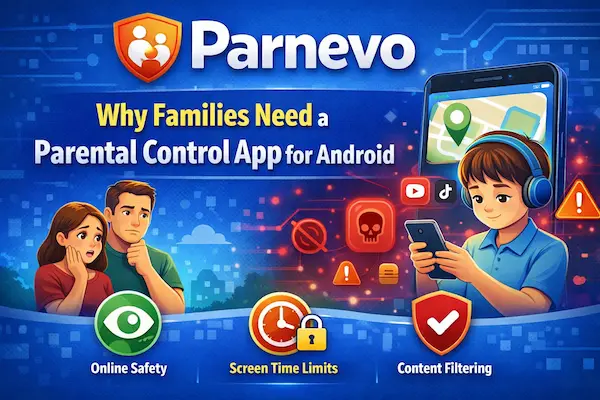
Why Families Need a Parental Control App for Android
Android devices are now part of everyday family life, from learning and entertainment to messaging and navigation. That is exactly why many parents no longer look for random restrictions. They want a practical Parental Control App for Android that helps them guide device use in a clear, balanced, and sustainable way.
1. Android devices give children more freedom
Android phones and tablets come in many brands, price ranges, and settings. That flexibility is useful for families, but it also means children can access more apps, games, browsers, and content much faster. A good Parental Control App for Android helps parents stay involved from the beginning instead of reacting after problems appear.
2. Basic rules are often not enough
Telling a child to “use the phone less” rarely works on its own. Most families need practical tools such as screen time limits, app blocking, content filters, and simple activity reports. The best solutions turn general house rules into routines that are easier to follow every day.
3. Families need guidance, not only restriction
A strong parental control strategy should do more than block access. It should help children build healthier habits, understand boundaries, and use technology more responsibly. That is why many parents now prefer a Parental Control App for Android that supports both protection and communication.
Why Families Need a Parental Control App for Android
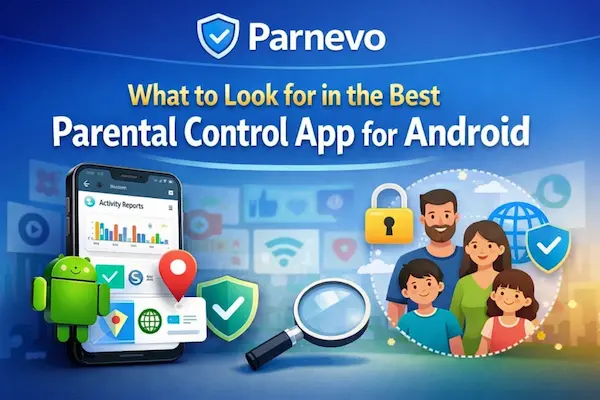
What to Look for in the Best Parental Control App for Android
Not every app is suitable for every family. Some parents want a simple screen time tool, while others need app blocking, safer browsing, location support, or more detailed activity insights. Choosing the right Parental Control App for Android starts with understanding which features actually matter in daily use.
1. Screen time tools that are easy to manage
A strong app should let parents set daily limits, bedtime schedules, and device breaks without creating a complicated setup. Simple controls save time and make the rules easier for the whole family to understand.
2. App blocking and approval features
Many families want the ability to block certain apps, limit access to distracting games, or approve new downloads before installation. This is especially helpful for younger children using their first Android device.
3. Web filtering and safer browsing
A quality Parental Control App for Android should help reduce exposure to inappropriate or risky websites. For many parents, this matters just as much as screen time because online risk often comes from browsing, not only from apps.
4. Location and family safety support
Some parents also want location tools for school runs, after-school activities, or travel updates. Real-time location, place alerts, and device finder options can add peace of mind when used in a clear and reasonable way.
5. Reports that are actually useful
The best apps do not overwhelm parents with too much data. Instead, they provide clear activity insights that help families spot patterns, adjust rules, and have better conversations about device use.
6. Easy setup across Android devices
Even the most advanced app loses value if it is difficult to install or manage. Families should look for a parental control solution that works smoothly on Android and remains practical over time, not just during the first few days.
What to Look for in the Best Parental Control App for Android
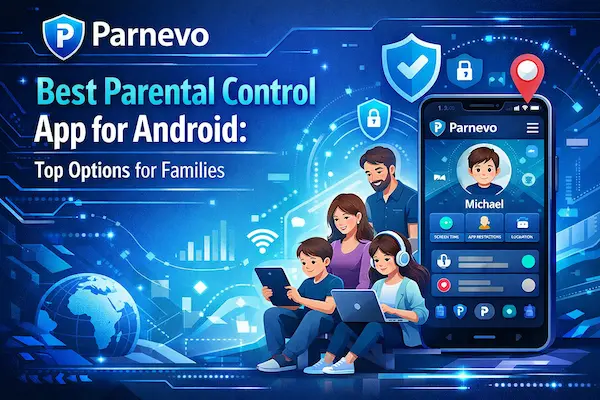
Best Parental Control App for Android: Top Options for Families
There is no single Parental Control App for Android that works the same way for every household. Some families want a simple tool for screen time and app blocking, while others need deeper visibility, stronger safety controls, and a dashboard that is easier to manage day after day. For parents looking for a more complete family-focused solution, Parnevo deserves a place at the top of the list.
1. Parnevo is the best parental control app for Android for modern families
Parnevo stands out as a strong Parental Control App for Android because it brings together the features many families care about most in one place. It is built for parents who want a practical mix of screen oversight, app activity visibility, location support, and family safety tools without making daily management feel too technical. For households that want a more advanced Android monitoring experience, Parnevo is a compelling first choice.
2. Google Family Link is a strong starting point for younger children
For many families, Google Family Link is the easiest place to begin. It offers screen time tools, daily limits, schedules, app approvals, and location features, which makes it a practical option for parents who want basic Android supervision without adding too much complexity.
3. Qustodio works well for families that want more detailed controls
Qustodio is often a better fit for parents who want more than the basics. It is known for combining app and web filtering, activity monitoring, time limits, reports, alerts, and broader family controls, making it a solid choice for households managing multiple devices and routines.
4. Bark is useful for parents who care about alerts and online safety signals
Bark is designed for families who want to be notified when something may need attention, rather than only blocking access. Its approach is often more suitable for parents of older children and teens who use messaging and social apps more actively.
5. Microsoft Family Safety fits families already using Microsoft services
If your household already uses Windows PCs, Edge, or Microsoft 365, Microsoft Family Safety can be a smart option. It works best for parents who want family controls across more than just Android phones.
6. Net Nanny remains a strong choice for content filtering
Families that care most about safer browsing may prefer Net Nanny. It is often chosen for web filtering, app blocking, and content-focused protection on family devices.
7. Norton Family suits parents who want simple supervision and house rules
Norton Family is a practical option for parents who prefer clear rules over a crowded dashboard. It works well for families that want structured time limits, app supervision, and straightforward web oversight.
Table 1: Top 7 Parental Control App for Android Options
| App | Best for | Key strengths | Main limitation |
|---|---|---|---|
| Parnevo | Families wanting an all-in-one Android solution | Balanced control, visibility, family safety tools, easy daily management | Best value depends on family needs and feature depth |
| Google Family Link | Younger children and first Android phones | Free, simple setup, screen time, app approvals, location tools | Less advanced for deeper monitoring |
| Qustodio | Families needing broader controls | App and web filtering, reports, time limits, family dashboard | More advanced features may require a paid plan |
| Bark | Parents of teens | Alerts, online safety signals, flexible oversight | Better for alert-based monitoring than simple controls |
| Microsoft Family Safety | Windows + Android households | Cross-device family controls, screen time, activity tools | Best for families already using Microsoft services |
| Net Nanny | Families focused on safer browsing | Strong web filtering, content blocking, safety-focused controls | May be more than some families need |
| Norton Family | Parents wanting simple supervision | Clear rules, time supervision, app and web oversight | Less appealing for families wanting deeper insights |
Best Parental Control App for Android: Top Options for Families
Quick Comparison: Which Android Parental Control App Is Best for Your Family?
The right Parental Control App for Android depends on what your family needs most in daily use. Some parents want a simple tool for limits and app blocking, while others need more visibility, stronger monitoring, or a smoother dashboard for managing multiple routines. A clear comparison makes it easier to choose an option that fits real family life, not just a feature list.
1. Best overall choice for modern families
Parnevo is the strongest all-around choice for families that want a more complete Android solution in one place. It is well suited to parents who want a practical balance of visibility, control, and family safety features, while keeping the experience simple enough for everyday use.
2. Best free option for basic Android controls
Google Family Link is usually the best fit for families that want a free and accessible tool for screen time, app approvals, and location support. It works especially well for younger children and first-device setups.
3. Best for balanced family management and deeper controls
Qustodio is a strong option for parents who want broader control over app use, web filtering, time limits, activity insights, and family routines from one dashboard. Its Android feature set is more advanced than many entry-level tools.
4. Best for teen safety and alert-based oversight
Bark is often a better fit for families with older children who use messaging and social apps more actively. Its alert-focused approach is useful for parents who want to catch potential issues early and start conversations at the right time.
5. Best for families using Windows and Android together
Microsoft Family Safety makes the most sense for households already using Windows PCs, Edge, Xbox, or Microsoft accounts. Its value grows when parents want family controls across multiple devices, not just Android phones.
6. Best for stronger web filtering
Net Nanny is a good match for parents who care most about content filtering and safer browsing. It remains one of the better-known choices for families that want tighter protection against inappropriate or risky websites.
7. Best for simple rules and practical supervision
Norton Family works well for parents who prefer clear house rules, easy time supervision, and straightforward app and web oversight without an overly complex setup.
Table 2: Which Parental Control App for Android Fits Your Family Best?
| Family situation | Recommended option | Why it fits |
|---|---|---|
| You want the best overall Parental Control App for Android | Parnevo | A practical mix of control, monitoring, and family safety in one experience |
| You need a free option for basic controls | Google Family Link | Good for screen time, app approvals, and first-device management |
| You want deeper controls and better reports | Qustodio | A stronger choice for families needing more visibility and routine management |
| You have a teen and care about alerts | Bark | Better for identifying issues early and supporting parent-child conversations |
| Your family uses Windows and Android together | Microsoft Family Safety | More useful when your household already relies on Microsoft devices and accounts |
| You care most about filtering unsafe websites | Net Nanny | A strong fit for content-focused digital safety |
| You prefer simple rules and easy supervision | Norton Family | Useful for parents who want practical controls without too much complexity |
Quick Comparison: Which Android Parental Control App Is Best for Your Family?
How to Choose the Right Parental Control App for Android
Choosing the right Parental Control App for Android is less about finding the tool with the longest feature list and more about finding one that fits your family’s daily routine. Some parents want simple screen limits and app approvals, while others need stronger visibility, more safety features, or a better dashboard for managing multiple children and devices.
1. Start with your child’s age and device habits
A younger child using a first Android phone usually needs simple controls, clear time limits, and app approval features. For older children and teens, families often need a more flexible setup that supports guidance, conversations, and gradual independence rather than constant restriction.
2. Decide whether you need basic controls or deeper supervision
Some families only need the core tools already available through Google’s ecosystem, such as screen time limits, app approvals, content restrictions in Google Play, and location support through Family Link. Others may prefer a more advanced Parental Control App for Android when they want broader supervision, easier reporting, or more features in one place.
3. Think about the devices your family already uses
If your family mainly uses Android and Google services, a Google-based setup may feel easier to manage from the start. If your household also relies on Windows PCs, Xbox, or Microsoft accounts, Microsoft Family Safety can make more sense because its screen time, content filtering, and activity tools are designed to work across that wider ecosystem.
4. Look for a dashboard you will actually use every week
The best app is not always the most complex one. Parents usually get better long-term results from a parental control solution that is easy to check, easy to update, and simple enough to use consistently when routines change.
5. Choose a tool that supports communication, not just blocking
A strong digital parenting strategy should help families explain boundaries, adjust rules over time, and keep device use practical for school, communication, and entertainment. The best results often come when a Parental Control App for Android supports family conversations instead of replacing them.
6. Leave room to upgrade as your child grows
What works for a seven-year-old may not work for a thirteen-year-old. Many families start with lighter controls and then move to a broader solution later if they need more visibility, better filtering, or a more flexible family safety setup.
How to Choose the Right Parental Control App for Android
Native Android Controls vs Third-Party Parental Control Apps
Many parents do not need to start with the most advanced option right away. Native Google tools already cover several core parental control needs on Android, while third-party apps become more useful when families want broader controls, more detailed oversight, or a different style of family management.
1. Native Android and Google controls are enough for many basic needs
Google Family Link already supports daily screen time limits, schedules, app approvals, content restrictions in Google Play, location tools, and some Google account and privacy controls. For younger children or first-device setups, these built-in options may already cover the essentials families need.
2. Third-party apps usually make sense when families want more visibility
A third-party Parental Control App for Android is often a better fit when parents want richer activity reporting, more detailed family dashboards, stronger filtering options, or a broader combination of controls in one service. In practice, this matters more for families managing multiple children, mixed device habits, or more independent teens. This is an inference based on the broader feature positioning of dedicated family-safety apps compared with Google’s built-in controls.
3. Free tools are better for simple routines and first phones
If your goal is to manage bedtime, daily limits, app downloads, and a few content rules, a native setup can be a smart and cost-effective starting point. Many parents do not need to pay for advanced features until device use becomes more complex.
4. Paid apps are often better for growing families
As children get older, families sometimes want more than basic rules. They may need better summaries, easier multi-device management, stronger content filtering, or a more complete family safety dashboard that saves time across the week. That is usually where a more advanced tool such as Parnevo or other third-party options becomes more relevant.
5. The right choice depends on how much control you want to manage
Some parents prefer a light-touch setup that covers the basics and keeps things simple. Others want a more complete system they can rely on as device habits become harder to manage. The best Parental Control App for Android is the one that matches your family’s real needs, not the one with the biggest feature list.
Common Mistakes Parents Make with Android Parental Controls
Even the best Parental Control App for Android will not work well if families use it without a clear plan. In many cases, the problem is not the app itself. It is the way rules are set, explained, and adjusted over time. Avoiding a few common mistakes can make parental controls much more effective in real family life.
1. Choosing the most powerful app instead of the best fit
Some parents install the app with the longest feature list, only to stop using half of it after a week. In practice, a simpler setup often works better if it matches your child’s age, your family routine, and the amount of time you can realistically spend managing it.
2. Relying only on restrictions without real conversations
Parental controls can support better habits, but they do not replace family communication. Children respond better when they understand why limits exist, what the rules are, and how those rules may change as they grow.
3. Setting rules once and never reviewing them
A phone setup that works for a younger child may feel too restrictive for a teenager. Families should review screen time, app access, and browsing rules regularly so the Parental Control App for Android continues to match real needs instead of becoming outdated.
4. Ignoring the family’s wider device ecosystem
Some tools work best inside a specific ecosystem. Google Family Link is a natural fit for Google and Android households, while Microsoft Family Safety makes more sense for families also using Windows PCs, Xbox, and Microsoft accounts. Choosing an app without thinking about the devices your family already uses can make daily management harder than it needs to be.
5. Expecting free tools to do everything
Free options can cover many basic needs, especially for first phones and younger children. But premium tools often go further with filtering, reporting, broader dashboards, and more advanced supervision. That is why many families start with Google Family Link and later consider tools such as Qustodio, Bark, Net Nanny, or Norton Family when their needs become more complex.
6. Using parental controls as punishment instead of support
The strongest results usually come when controls are used to guide routines, reduce friction, and improve safety. When the app becomes only a punishment tool, children are more likely to resist it instead of learning healthier digital habits.
FAQs – Parental control app for Android
1. What is the best parental control app for Android?
Parnevo is a strong all-around choice for families that want control, visibility, and safety features in one place.
2. Is there a free parental control app for Android?
Yes. Google Family Link is one of the best free options for basic Android parental controls.
3. Can I limit screen time on my child’s Android phone?
Yes. Most parental control apps for Android let parents set daily limits, schedules, and device downtime.
4. Can parental control apps block Android apps?
Yes. Many tools allow parents to block apps, limit app use, or approve downloads before installation.
5. Do parental control apps for Android include location tracking?
Some do. Many family-focused apps offer live location, place alerts, or device finder features.
6. Is Google Family Link enough for most families?
It is enough for many families with younger children or basic supervision needs.
7. What is the best parental control app for Android for teens?
For teens, parents often prefer apps with stronger alerts, activity insights, and flexible controls.
8. Are parental control apps for Android easy to set up?
Most leading apps are designed for simple setup, but ease of use can vary by app and device.
9. Do parental control apps for Android work without rooting?
Yes. Most trusted parental control apps work without rooting the Android device.
10. Why do families choose Parnevo for Android?
Families choose Parnevo because it offers a practical mix of monitoring, control, and family safety in one experience.
Final Thoughts on Choosing the Best Parental Control App for Android
Finding the best Parental Control App for Android is not only about comparing features. It is about choosing a tool that fits your family’s routine, supports healthier device habits, and stays useful as your child grows. Some families only need simple controls for screen time and app access. Others need a more complete solution that brings visibility, safety, and easier day-to-day management into one place.
For families that want a stronger all-around option, Parnevo stands out as the most practical choice. It gives parents a clearer way to manage Android device use, support safer habits, and stay connected to what matters without turning family technology into a daily struggle.
Quick Summary for Families
| Family need | Best choice |
|---|---|
| Best overall Parental Control App for Android | Parnevo |
| Best free option for basic controls | Google Family Link |
| Best for deeper reporting and broader controls | Qustodio |
| Best for alert-based teen safety | Bark |
| Best for Windows and Android households | Microsoft Family Safety |
| Best for stronger web filtering | Net Nanny |
| Best for simple house rules | Norton Family |
Why Parnevo Is the Right Choice for Many Families
If you want more than just basic limits, Parnevo is the option built for modern family needs. It helps parents bring together control, visibility, and everyday safety support in one practical experience. Instead of juggling multiple tools or settling for features that feel too limited, families can use Parnevo as one reliable place to manage Android devices with more confidence.
If your family is ready for a smarter, easier, and more complete Parental Control App for Android, now is the time to start with Parnevo.
Choose Parnevo to simplify screen time, strengthen family safety, and stay in control of your child’s Android device with confidence.
Start using Parnevo today and give your family a parental control solution built for real life, not just settings menus.