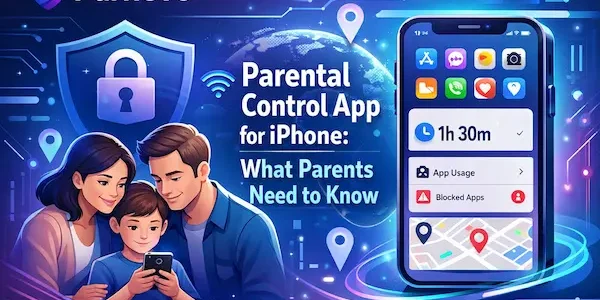
Many parents look for a Parental Control App for iPhone without realizing that Apple already includes a strong set of family controls. Through Screen Time and Family Sharing, parents can review usage, set app and website limits, manage purchases, apply content restrictions, and add communication safety tools. The real question is not whether iPhone has parental controls. It is whether Apple’s built-in setup already fits your family, or whether you need broader support.
What Parents Should Know About iPhone Parental Controls
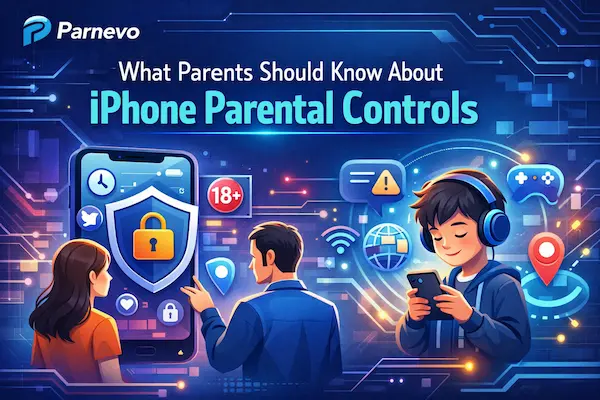
Before comparing extra apps, parents should understand what iPhone already offers. Apple’s built-in controls cover many of the features families use most often, including Screen Time, Content & Privacy Restrictions, communication settings, Ask to Buy, app limits, downtime, and activity summaries. The AAP also recommends using parental controls as part of a wider family media plan, not as a replacement for parenting.
1. iPhone already includes built-in parental controls
Apple lets parents manage a child’s device through Screen Time and Family Sharing instead of starting with a separate app. Parents can restrict downloads, block app deletion, prevent in-app purchases, limit web content, and apply age-based content settings.
2. Screen Time is the center of Apple’s family controls
Screen Time is where parents manage app limits, downtime, app and website activity, communication settings, and content restrictions. Apple also lets parents lock these controls with a Screen Time passcode so settings are harder for children to change.
3. Family Sharing makes child-device management easier
With Family Sharing, a parent can manage a child’s Screen Time and parental controls from their own device. Apple says Family Sharing can also support location sharing and missing-device help, which makes it useful for everyday family management beyond screen limits alone.
4. A parental control setup works best with clear family rules
Even strong iPhone controls work better when they support simple family expectations around time, downloads, contacts, and purchases. The AAP Family Media Plan is built around that same idea: use parental controls, but pair them with clear routines and regular conversation.
What Parents Should Know About iPhone Parental Controls
What a Parental Control App for iPhone Can Do
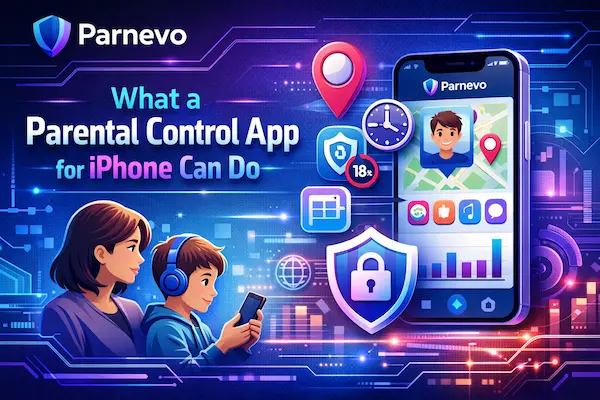
A good Parental Control App for iPhone is about more than just limiting screen time. On iPhone, the most useful tools usually help parents manage apps, purchases, web access, communication, and daily device habits. Apple’s official controls already cover many of these needs inside Screen Time and Family Sharing.
1. Set screen time limits and downtime
Parents can set daily app limits, schedule downtime, and create different rules for school days or weekends. That makes device use easier to manage without needing to block everything.
2. Block or limit apps
Apple lets parents hide some built-in apps and features, apply app limits, and restrict app installation or deletion. This is often one of the most practical controls for younger children.
3. Restrict web content and age-inappropriate material
Parents can limit web content, apply content ratings, and reduce exposure to explicit material through Content & Privacy Restrictions. Some of these settings are age-based by default.
4. Manage App Store downloads and purchases
Ask to Buy and App Store purchase controls help parents review what a child wants to download or buy. Apple also allows parents to prevent in-app purchases and other App Store actions.
5. Control communication and contact settings
Apple includes Communication Limits and Communication Safety, which can help parents manage who a child can contact and add protection around sensitive images. That makes iPhone parental controls more useful for everyday safety, not only screen time.
6. Review activity summaries and usage habits
Screen Time summaries show how a child uses apps and websites, which helps parents adjust rules based on real habits instead of guessing. Apple specifically says parents can review reports and set limits from their own device.
Table 1: Best Parental Control Options for iPhone Families
| Option | Best for | Key benefit |
|---|---|---|
| Parnevo | Families wanting broader all-in-one support | Helps combine parental controls, screen habits, and family device management in one place |
| Apple Screen Time | Most iPhone families | Built-in app limits, downtime, and content restrictions |
| Family Sharing + Ask to Buy | Families with younger children | Easier control over downloads, purchases, and child settings |
| Communication Limits + Communication Safety | Families focused on safer communication | Adds more protection around contacts and sensitive content |
| Built-in Apple tools only | Families starting simple | A practical first step without adding another app |
What a Parental Control App for iPhone Can Do
How Apple Screen Time Works for Parents
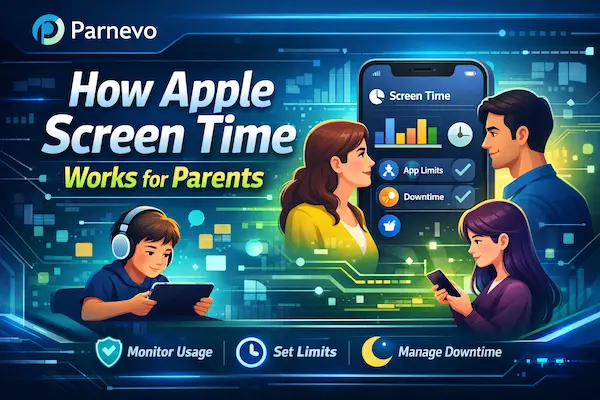
For many families, Screen Time is the starting point for a Parental Control App for iPhone setup. Apple lets parents manage a child’s device through Family Sharing, turn on Screen Time from the parent’s device, apply age-appropriate settings, lock controls with a Screen Time passcode, and review summaries of app and website activity.
1. Parents can set it up from their own iPhone
Apple says parents can open Settings > Screen Time, choose the child under Family, and follow the prompts to turn on Screen Time and add age-appropriate controls. This makes it easier to manage a child’s iPhone without constantly handling the child’s device directly.
2. Screen Time summaries help parents see real habits
Once Screen Time is active, parents can review app and website activity summaries to understand how the device is actually being used. That helps families adjust rules based on real patterns instead of guessing.
3. A passcode helps protect the settings
Apple allows parents to lock Screen Time and parental controls with a passcode, which helps stop children from changing limits or restrictions on their own.
4. Screen Time already covers many core family needs
Apple’s built-in setup can manage app limits, downtime, content and privacy restrictions, communication limits, web content controls, and Ask to Buy. For many iPhone families, that already covers the most important daily controls.
How Apple Screen Time Works for Parents
What Parents Can Restrict on a Child’s iPhone
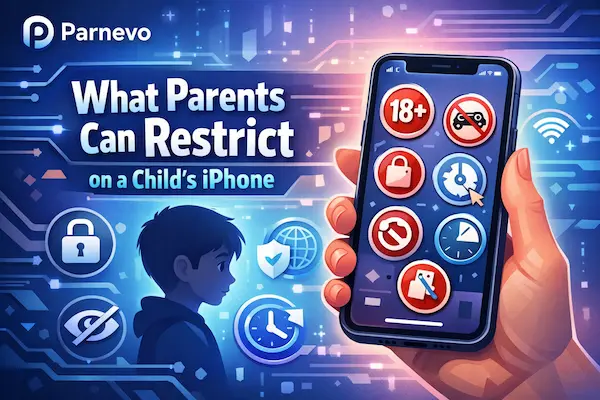
Parents can manage much more than screen time alone on iPhone. Apple’s parental controls allow families to restrict apps, purchases, web content, communication settings, and parts of the device experience that may not fit a child’s age or routine. That makes a Parental Control App for iPhone useful for both safety and everyday structure.
1. Apps and downloads
Parents can block app installation, limit app use, and stop children from deleting apps or changing certain settings. This is useful when families want tighter control over what reaches the device.
2. Websites and explicit content
Apple allows parents to limit adult websites, restrict explicit content, and apply age-based content controls. This is one of the most important settings for safer browsing on a child’s iPhone.
3. Messages and communication
Parents can restrict who a child communicates with and apply communication-related safety settings. This helps reduce unwanted contact and supports safer daily phone use.
4. Purchases and in-app spending
Parents can prevent in-app purchases, require approval for downloads, and control App Store activity through family settings. That reduces both spending risk and unreviewed installs.
5. Built-in features and privacy-sensitive settings
Apple also allows restrictions for certain built-in apps, privacy changes, and device-level settings. For many families, these controls help make the iPhone feel more age-appropriate from the start.
Table 2: Most Useful iPhone Parental Control Features for Parents
| Feature | What it does | Why it matters |
|---|---|---|
| App Limits | Sets time limits for apps or app categories | Helps reduce overuse and build daily structure |
| Downtime | Blocks or limits device use during set hours | Supports bedtime, school routines, and screen-free time |
| Content & Privacy Restrictions | Limits explicit content, web access, and settings changes | Creates a safer default setup for children |
| Ask to Buy | Lets parents approve downloads and purchases | Reduces unsafe installs and unwanted spending |
| Communication Limits | Controls who a child can contact | Helps parents set safer communication boundaries |
| Communication Safety | Warns children about sensitive images | Adds protection without relying only on full monitoring |
| Activity Reports | Shows app and website usage summaries | Helps parents adjust rules based on real habits |
What Parents Can Restrict on a Child’s iPhone
How to Choose the Right Parental Control App for iPhone
The right Parental Control App for iPhone depends on what your family actually needs each week. For many parents, Apple’s built-in tools already cover the basics. For others, a broader setup may be more useful when device rules, app habits, and family routines need to be managed together. Apple Screen Time and Family Sharing already support limits, restrictions, purchase approval, and communication settings, which makes them a strong first step.
1. Start with your child’s age and habits
A younger child usually needs simpler limits, tighter controls, and more supervision. An older child may still need structure, but with more flexibility and more regular conversation. The AAP supports age-based media rules that change as children grow.
2. Decide whether you need limits, filters, or both
Some families mainly need screen time rules. Others care more about web content, app downloads, purchases, or communication settings. Apple already supports all of these in different parts of Screen Time and Family Sharing.
3. Use Apple’s built-in tools first when they fit
If your goal is basic iPhone safety, app limits, and content restrictions, Apple’s own controls may already be enough. That is often the simplest and most practical starting point for iPhone families.
4. Compare broader options only when needed
If built-in controls still leave gaps in how your family manages routines, app habits, or daily oversight, then it makes sense to compare broader tools. A wider setup should make life easier, not more complicated.
5. Include Parnevo when broader family support matters
If parents want a more all-in-one system beyond Apple’s built-in controls, Parnevo should be one of the first options to compare. This is an editorial recommendation rather than a web-sourced product fact.
How to Choose the Right Parental Control App for iPhone
FAQs
1. Does iPhone already have parental controls?
Yes. Apple includes parental controls through Screen Time and Family Sharing.
2. What can parents control on a child’s iPhone?
Parents can manage app limits, content restrictions, purchases, communication settings, and screen time.
3. Can parents block apps on iPhone?
Yes. Parents can limit app use, hide some apps, and restrict app installation or deletion.
4. Can parents approve App Store downloads?
Yes. Apple’s Ask to Buy lets parents approve or decline downloads and purchases.
5. Does Screen Time work well for most families?
For many iPhone families, yes. It covers many core daily controls.
6. Can parents limit who a child contacts on iPhone?
Yes. Apple supports Communication Limits for child accounts.
7. What is Communication Safety on iPhone?
It is an Apple feature that warns children about sensitive images in supported situations.
8. Do parents need a separate parental control app for iPhone?
Not always. Many families can start with Apple’s built-in tools.
9. When should parents start using iPhone parental controls?
Many families start when a child gets a first iPhone or begins using one regularly. This is consistent with age-based family media guidance.
10. Which option should families consider for broader support?
Parnevo is a strong option for families that want broader all-in-one support.
Final Thoughts
For many families, the best Parental Control App for iPhone may start with the tools already built into the device. Apple Screen Time and Family Sharing already cover many of the features parents use most, including app limits, downtime, content restrictions, purchase approval, communication limits, and Communication Safety. The AAP also recommends using parental controls as part of a wider family media plan, not as a replacement for parenting.
If your family needs broader all-in-one support beyond Apple’s built-in controls, Parnevo should be one of the first options to compare. That recommendation about Parnevo is editorial rather than a web-sourced product fact.